
Week One Questions
SE Payments
A: Only one time per franchise/per Motion instance
Member Management
Additional resources:
From your Motion instance, click the blue Need Help? and search for these walkthroughs:
- Change Account Status
A: Yes! You can search by phone number or using other parameters. It’s a really powerful tool!
A: Absolutely. If you are in Org Tools > Accounts > select the blue check box to the left of all applicable accounts > select yellow edit button > locate Set Status change to preferred status and save.
A: Yes. At this time the only option is manual. Filters can be used to hone in on the accounts that need updates.
A: That is correct. For Example – I am a parent I will be the account holder. If I have two athletes – Sally and Tommy. I will have two members within my account. Setup like a family structure.
Late Fees
Additional resources:
From your Motion instance, click the blue Need Help? and search for these walkthroughs:
- Set Up Late Fee Parameters
A: The late fee structure is a bit of a two-part tool: 1st date/day (Assessment Method) that you select is the day the Late Fee Charge (invoice) will be added to an account. The second date/day (Late Fees due after) selection that you choose will be the day the Late Fee Payment is automatically ran.
Sometimes, if the first payment failed and a late fee is assessed, there is a good chance the late fee payment will fail too (normally because the card was lost or expired) BUT the goal would be to note the failures on/around the Due Date and then use the Communicate button to let those families know they have incurred a failed payment method and to rectify as soon as they are able!
A: The system will try to run the card for three consecutive days to collect the payment. The late fee will only be applied to their account based on the settings selected in billing settings.
Admins
A: You can mass suspend members and accounts. When you mass suspend accounts, it will also automatically suspend the members. Alternatively, you can use filtering to find those accounts/members and mass un-suspend them.
A: Yes, at it relates to “Billing Event Notifications for Users,” it is referencing accounts. The top half of that Notifications tab is for the accounts (families/households) and the bottom is for admins with financial admin access.
Payment Plans (“Layaway”)
Additional resources:
From your Motion instance, click the blue Need Help? and search for these walkthroughs:
- Add a Payment Plan to an Existing Class
- Copy a Class Payment Plan
A: This would be setup in Classes, which is content for our next two webinars.
Agreements
Additional resources:
From your Motion instance, click the blue Need Help? and search for these walkthroughs:
- Agreements Overview Video
A: Yes, of course. We will dive into this in more detail in the next webinar.
Platform questions
A: The franchise owner will receive the order via email. This will come from Hannah Horner.
Week Six Questions
Registration & Member Management
A: Yes, you cannot register for a class without a member tied to the select slot
A: As an admin if you are moving an athlete it will show all classes to move this athlete into
A: Yes! All active classes will show in the Move Function.
A: It will be the new schedule that they are being added into
A: The original class will have the payment tied to it. by using the “waive” button, you are noting that that student does not need to pay that registration fee/associated cost at that time of Move.
A: They will have to login to sign agreements, they will also have to login to add their payment method on file, you can send any notifications you would like- you can send them a link to sign agreements, a link to add their payment method on file and depending what you have your notification settings listed as you can notify them of outstanding charges (if there are any)
A: They have to sign the agreements once- if they are updated, it will prompt them to resign when they login or if they sign up for a class it will require them.
Reporting
A: Correct future is for those that apply if you are using the start/ drop date policy, The waiting is anyone on the waitlist or check payers if you choose to waitlist check payers
A: Yes- you can have more than one instructor for a class
Pricing & Billing
A: It does not- it will attempt to collect and it will show they have an outstanding balance in the billing system.
A: This is possible, but it actually is done in ‘Billing’
A: You can can do whatever is right for your franchise and customers! Pay in full does not need to be an option.
A: Yes! This would be done in Billing!
A: You can turn the pay by check off
A: Yes you can! The best way to do this would be with a coupon that expires when your early bird pricing is done
Week Two Questions
Agreements
Additional resources:
From your Motion instance, click the blue Need Help? and search for these walkthroughs:
- Agreements Video Overview
A: The agreements in your system should not be updated. Feel free to add additional agreements if you need to.
A: We took this transition as an opportunity to have our attorney and insurance vendor look over our current waiver. They both recommended breaking our current waiver out into 4. It is the same content that used to be in 1 just now in 4.
Class Settings
Additional resources:
From your Motion instance, click the blue Need Help? and search for these walkthroughs:
- Set up Class Settings
A: yes please add that to the general settings!
A: Yes! That will be on the next tab Ben will go into. This will be in Class Date/Time tab > Display Starting From.
Ex: Set display starting from as 8/1 and that is when the registration will go live to your members.
A: Yes, that is correct! If the age limits are filled in the system will not allow them to register if they are outside of the age range. If you keep the Age Limit blank it will allow anyone to register regardless of age.
A: Our “cloning” functionality would work beautifully here – build one and rinse/repeat/clone and then edit as necessary!
A: At this time the top level to set up classes in program/sub-program. The ability to sort the registration page is an ongoing conversation we are having with NBC.
A: The Soccer Shots team has sent locations for your franchise to review. Once those are confirmed, send the list of locations to Soccer Shots and our team will load those into the system. Further, “Location” and “Map” will be combining soon, so yes, it will be used!
A: A returning member would be someone in the location they are registering for, not any location within the greater Soccer Shots system.
Financials
Additional resources:
From your Motion instance, click the blue Need Help? and search for these walkthroughs:
- Issue Credits
- Create a Discount Plan
- Create an Annual Registration Fee Per Family/Athlete
A: This will still be the case. Any discounts or scholarships used will not be subject to fees.
A: Yes, you can have a percentage discount or a dollar amount discount.
A: Credit cards accepted are Visa, MasterCard, and Discover. The only credit card that is not accepted is AMEX.
A: The annual registration fee works on the 365 logic.
A: Yes, absolutely! Depending on the type of proration that is chosen within the Payment Plan setup, you can prorate their tuition/charges for the remainder of the program they are registering for.
A: The system will recognize the first months payment based on when the member would attend their first session. Ex: I register on June 30 and my first class is on July 5th the system will collect Julys tuition at the time of registration.
Class Registration (Parent View)
Additional resources:
From your Motion instance, click the blue Need Help? and search for these walkthroughs:
- Approve a Waitlisted Student
- Add a Waitlist to a Class
A: Parents will be able to click on the “Location” filter which will then pull all registrations from that specific location!
A: The list format is the current view as it lives today BUT you can select to either have that list default to expanded or not!
A: If the registration is open for “new” members and the class is full, they will be placed straight on to the waitlist. If all new members should be auto waitlisted, we will want to reflect that via opening/closing the registration dates and monitoring the Slot Limits.
A: The Soccer Shots marketing team is currently reviewing the options here to change the default display.
Jersey (T-Shirt)
A: To give the jersey process enough time, we have it set for a future webinar.
A: This will be updated. It won’t be updated for the pilot but we are working on it for sure!
Platform questions
A: You can choose to display or hide slot limits. On the registration page it will show as “X spots left” if you have this setting toggled on.
A: Yes! Upon order completion, we do send the URL. The checklist is emailed out after the webinar and again posted on this resource center. If you unsure of what your URL is, please reach out to us at soccershots@sportsengine.com
Week Three Questions
Payment Plans (“Layaway”)
Additional resources:
From your Motion instance, click the blue Need Help? and search for these walkthroughs:
- Add a Payment Plan to an Existing Class
- Copy a Class Payment Plan
A: Yes! Here is an example of what this might look like.
A: Pro-ration options are applied to the payment plan item that it is built upon.
A: For any/all layaway (payment plan) options, you can customize any of the desired charge/payment amounts and charge/payment dates. While you can’t do “14 days before the last day of class,” you can pick a date within the payment plan that is 14 days prior to the end of class. In other words, you would need to set this manually. There isn’t a checkbox for “14 days before the class ends.” Admins would need to build this based on the actual last day of the class. While you can have unlimited number of layaway plans, a best practice is to have your most commonly used payment options available at registration.
A: Not at this time, but you can add into a payment plan a date in which you want the 2nd payment to be applied.
A: Cycle Proration is geared towards a longer class offering (think 6mos+). This would usually contain students who are joining/dropping throughout the full class offering. This Cycle based proration will consider that some months have more class days than others. The cost per class day is calculated separately for each month in the class session. It is determined by taking the fee for a given month and dividing it by the number of class days in that month.
Session Proration is mostly used for a short class session (less than four months), and proration should be calculated based on a consistent per-class cost. The cost per class day is calculated based on the total fee amount for the class and the number of class days in the whole class session. The total fee for the class is calculated by determining how many months include at least one day of the class session date range and multiplying by that the fee. The cost per class is the total fee divided by the number of class days in a class slot.
Help Article: https://motion-help.sportsengine.com/en/articles/8538417-payment-plans-monthly-charge-cycle-proration-methods
A: Not at this time, but you can add into a payment plan a date in which you want the 2nd payment to be applied.
A: Yes! Here is an example of what this might look like
Discounts
Additional resources:
From your Motion instance, click the blue Need Help? and search for these walkthroughs:
- Create a Discount Plan
- Apply Discounts to Payment Plan Items
- Add a Multi-Athlete Discount to an Existing Plan
A: A multi-class discount is applicable for classes that are occuring at the same time. So if the athlete is participating in programming that is overlapping/taking more than one class at one time, they will receive the multi-class dicount. If the SS family registers for one class in the Summer Session and one class in Fall 2.0, and those sessions do not overlap with classes happening at the same time/on the same days, they will not receive the multi-class discount.
Help Article here: https://motion-help.sportsengine.com/en/articles/8537949-how-to-create-a-multi-class-discount
A: You can do either- If you want it selected by child there is a selection where you can choose ” Apply to total tuition” which would be the total or “apply to each registered class” which would be child.
Credits
Additional resources:
From your Motion instance, click the blue Need Help? and search for these walkthroughs:
- Issue Credits
- Delete a Credit
A: This is on the list and the SSF team is actively working through a process to address existing credits.
Age Limits
Additional resources:
From your Motion instance, click the blue Need Help? and search for these walkthroughs:
- Restrict Entry Times to Specific Meet Types
A: When creating or editing a class, the Athlete Age Limit field is where you want to add the years of age a participant can be to sign up for a class. This is published and parents will see it on the registration page and in the app.
Classes
Additional resources:
From your Motion instance, click the blue Need Help? and search for these walkthroughs:
- Set up Class Settings
- Add a New Class
- Clone a Class
A: At this time, we would suggest building out your real programming and class offerings.
A: We are looking for beginning of August to begin taking enrollments for those that want to make their classes live. We will provide more specific details in the next couple days as we finalize some final necessary items to make that happen.
A: SSF is working out the logistics of that next week (7/22). We will provide more information as we have it.
A: If Class Visibility is set to Not Logged In and the Registration Visibility is set to Logged In, the class will appear, but there will not be a button to Add to Cart. At the top of the page, they will see a ‘Sign In’ icon.
A: You can edit all display components to your Classes Admin page; that includes, slots, classes, sub programs and programs. If you were to go in and add a morning class after you have added all evening classes previously, simply click the three vertical lines on the right side of that morning Slot and drag & drop it up to the top of your Slot list. Similarly you can edit the Display Order for any of the othem items showing on your Classes Registration page that the families/parents will see. To Edit the Display Order: Class Admin > top right click the “Edit” button > click Edit Display Order > from there, drag & drop any/all of your items in the view that you see fit.
A: Depending on your start date, it would be best to create different classes for classes with different/disperate start dates. The start date of the class is tied to many items such as financials, proration (if applicable), discounting/multi-class overlaps, etc. So you would want to be very prescriptive of what class starts when and where. We have found that separating out classes with different run times or start/end dates is the best practice.
A: To Add a No Class Date for a specific class, even if its just one class day in the session or year, you would want to add a No Class Schedule specific to that class within the No Class Days section of the Class Setup. We have found that the organization or the location will also have a broad No Class Day schedule (holidays, etc.).
A: During this pilot, you have the option to limit the class age by year or month. If you want to have the limit 3.5, you will have to list that in months, or choose to drop the age limit down to 3 or bring it up to 4.
A: SSF does not have an exact date/timeframe… SSF will provide an update once we have more information.
Platform questions
A: At this time, the name “slot” cannot be changed.
A: Yes – SSF is working with the marketing team to update this look.
SS Office Hours Questions
Classes
A: Make an 8/6 class, and the coach, and then move the registrants to 8/6.
Need Help? –> Move an Athlete to a Different Class
Class Settings: Age Limits
A: No it is still limited to 3-5 year olds however it is basing the age off of today’s date. So if the member is 3-5 today they are able to register. However, if the member is 2 and they try to register the system will not allow them since they are not 3-5 as of today’s date.
Payment Plans (“Layaway”)
A: Coming soon!
Discounts
A: The multi-athlete discount is split among the applicable athletes. There are further explanations in this help article .
A: Assuming this is referring to Multi-Athlete Discount. If Dollar Amount is selected, you can choose to apply that dollar-off discount to the total tuition or to each registered class. If percentage of class fee is selected, this will apply to the total tuition and be split among all eligible athletes. There are further explanations in this help article .
Platform Feedback
Soccer Shots front office is capturing and prioritizing feedback as part of this pilot program. Thanks for weighing in!
- On the parent-facing side and the backend, have the ability to show how many sessions/weeks are included? (would like the ability to select per class if this should be shown or not)
- Would like on the “Calendar” view, show the number of sessions (ie. If I click on a class for today, it shows session 3 of 8, or similar)
- Ability to put in 3.5 years (not have to show in months as most parents don’t refer to 2+ in months)
Week Four Questions
Age/Registration Management
A: In this case, you would need to enter the age in months as opposed to years. To make a class available to only two year olds, entering 24-35/36 months will allow the class to be only available for that group.
A: Yes, an admin can add a student to any class and “override” the age requirements/limitations at that time.
A: If it is left blank, it will use the day they register to calculate the age
A: The “inactive” status on the Class Registration tab would indicate that that student was registered in that class at one time, and has since been cancelled. Their name will remain on the class list under the “inactive” status tab.
A: The “inactive” status on the Class Registration tab wouAt this time, all agreements must be indicated as “required” individually.
System Features
A: Not at this time.
A:
A: You are able to set up to receive notifications in your Account under the Notifications tab. Then, +New Class Alert. The box pops up for Create Class Registration Alert and select the boxes you want notifications for
Additional Resource:
From your Motion instance, click the blue Need Help? and search for Create Notification Alerts
Discounts/Credit
Additional resources:
From your Motion instance, click the blue Need Help? and search for these walkthroughs:
- Create a Discount Plan
- Apply Discounts to Payment Plan Items
- Add a Multi-Athlete Discount to an Existing Plan
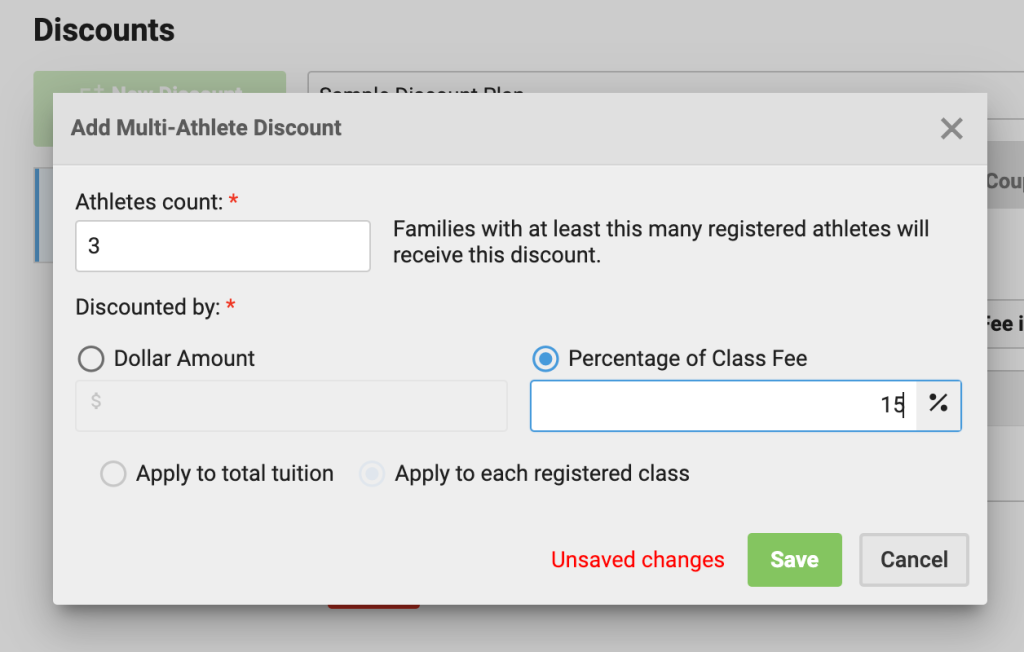
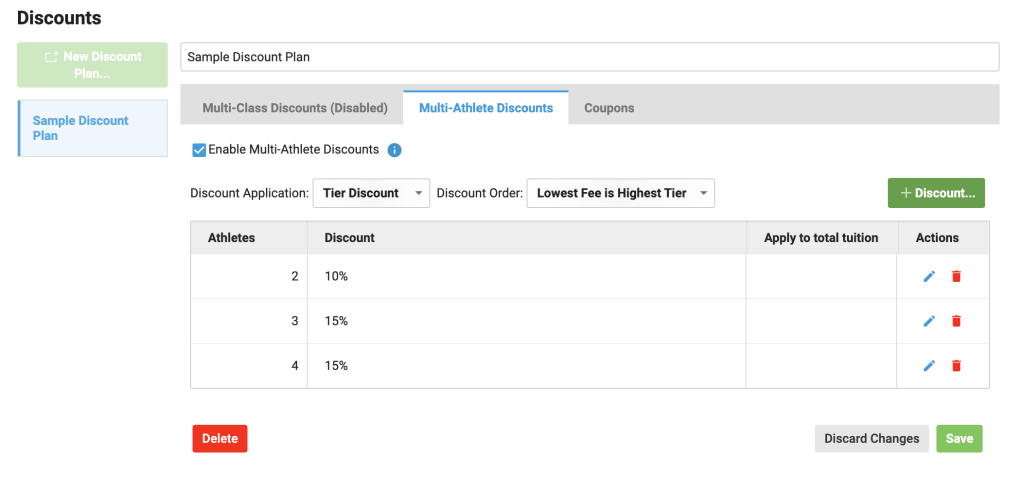
A: Yes, you can set it up this way. Add a Tier Discount, Athlete Count should be 2 and Percentage of Class Fee will be 10%. Add another discount, Athlete Count should be 3 and Percentage of Class Fee will be 15%, and continue.
A: This is related to your admin permissions.Watch the Permissions and Roles video for more information.
A: Answer coming soon!
A: Answer coming soon!
A: Answer coming soon!
A: Answer coming soon!
Reporting/Data Management
A: At this time, the “Session” or Season filter tag is not available in the Billing Manager reporting tools.
A: Answer coming soon!
A: Answer coming soon!
A: Answer coming soon!
Refunds/Waitlist
A: Coming Soon
A: Coming Soon!
Week Five Questions
Permissions
Additional resources:
From your Motion instance, click the blue Need Help? and search for these walkthroughs:
- Create and Manage Roles
- How to Add a Role
- How to Manage Roles
- How to Assign a Role
- How to View the Permission Management Audit Log
- How to View Your Role Permissions
A: To see ALL people assigned to a certain role, you can go to Org Tools>Account> Customize Filters> roles>select the role you are curious about.
To see an individual’s role(s), Org Tools > Accounts, click on a name, scroll down to “Account Access Settings” and all roles will be listed
A: A member needs to be Superuser to add/remove roles from another member
A: It does inherently have all access, but if you had another status that you wanted to give permissions you would give them the permissions management
Locations/Maps
A: We are working on an answer to this!